How to Set Up an HP Printer Easily at Home or Office
Setting up a new HP printer doesn’t have to be complicated. Whether you're installing it for personal use at home or integrating it into an office environment, a clear step-by-step approach can make the process quick and hassle-free. This guide walks you through everything you need to know to get your HP printer up and running smoothly.
1. Unbox and Prepare Your Printer
Start by carefully unboxing your printer and removing all packaging materials, including protective tapes and plastic covers. Make sure you have all the components, such as:
Power cable
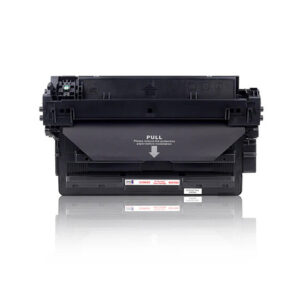
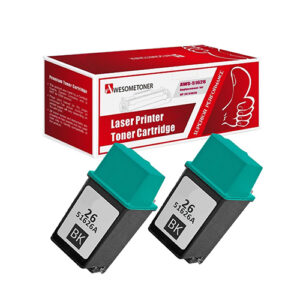
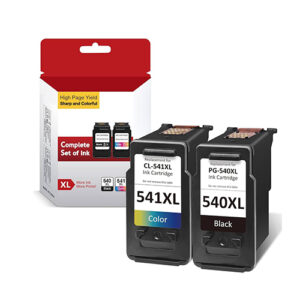
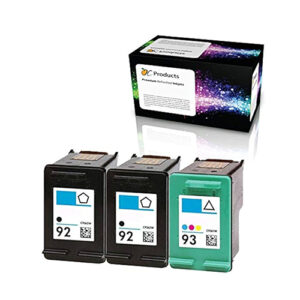
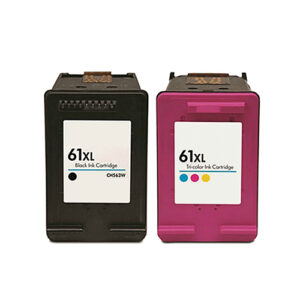
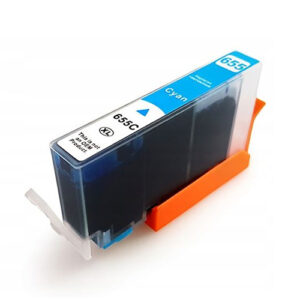
Ink or toner cartridges
Installation guide or manual
Place the printer on a flat, stable surface near a power source and within range of your Wi-Fi router (if using wireless connectivity).
2. Power On and Install Cartridges
Plug in the printer and press the power button to turn it on. Follow the on-screen instructions (if available) to install the ink or toner cartridges properly. Open the cartridge access door, insert the cartridges into their designated slots, and ensure they click into place securely.
Next, load paper into the input tray, adjusting the guides to fit the paper size.
3. Connect Your Printer to Wi-Fi
For wireless printing, connect your HP printer to your Wi-Fi network:
Use the printer’s control panel to navigate to the “Wireless” or “Network Settings” menu.
Select your Wi-Fi network name (SSID).
Enter your Wi-Fi password when prompted.
Once connected, the printer should display a confirmation message or indicator light.
4. Install Printer Software and Drivers
To enable full functionality, install the necessary printer drivers and software on your computer:
Visit the official HP website and download the latest drivers for your printer model.
Run the installation file and follow the setup instructions.
Choose your connection type (USB or wireless) when prompted.
For mobile devices, you can install the HP Smart app to manage printing and scanning tasks easily.
5. Add the Printer to Your Device
After installing the drivers:
On Windows: Go to Settings > Devices > Printers & Scanners, then click “Add a printer.”
On macOS: Open System Settings > Printers & Scanners, then click the “+” icon to add your printer.
Select your HP printer from the list and complete the setup.
6. Print a Test Page
Once everything is set up, print a test page to ensure your printer is working correctly. This helps verify:
Proper connectivity
Correct cartridge installation
Print quality
You can usually print a test page from the printer settings menu on your computer.
7. Troubleshooting Common Issues
If you encounter any problems during setup, consider these quick fixes:
Printer not found: Ensure both your device and printer are connected to the same Wi-Fi network.
Poor print quality: Check ink levels and run a print head cleaning cycle.
Driver issues: Reinstall the latest drivers from the official website.
123HP.com Setup Guide for Beginners (2026 Edition)
Setting up a new HP printer has become easier than ever, thanks to the official setup portal 123.hp.com Setup Portal. Whether you're a first-time user or installing a printer in a new office, this beginner-friendly 2026 guide will walk you through the entire process—from unboxing to printing your first document.
What is 123HP.com?
The 123.hp Setup Portal is HP’s official platform designed to help users install printer drivers, download the HP Smart App, and configure printers quickly. It provides model-specific instructions and ensures you install the correct software for your device.
Step-by-Step 123HP.com Printer Setup
1. Unbox and Prepare Your Printer
Start by removing all packaging materials, tapes, and protective covers from your printer. Place it on a stable surface near a power source.
Make sure you have:
Power cable
Ink or toner cartridges
Setup manual
Plug in the printer and turn it on.
2. Install Ink Cartridges and Load Paper
Open the cartridge access door and carefully insert the ink cartridges into their respective slots. Once installed:
Load plain paper into the input tray
Adjust paper guides properly
This ensures smooth alignment and printing.
3. Visit 123HP.com and Download Software
Open your browser and go to the official setup page. Enter your printer model and download the recommended software or drivers.
Most users will be prompted to install the HP Smart App, which helps connect your printer, install drivers, and manage printing tasks.
4. Connect Your Printer to Wi-Fi
For wireless setup:
Open the printer’s control panel
Go to Wireless Settings / Network Setup
Select your Wi-Fi network (SSID)
Enter the password
Alternatively, use the HP Smart app to guide you through the connection process.
Make sure your printer and device are connected to the same network.
5. Install Drivers and Complete Setup
Once the software is downloaded:
Open the installer
Follow on-screen instructions
Choose connection type (Wi-Fi or USB)
The setup tool (like HP Easy Start) will automatically install drivers and configure your printer.
Mac: System Settings → Printers & Scanners → Add (+)
Select your HP printer and complete the setup.
7. Print a Test Page
To confirm everything is working:
Open any document
Click Print
Select your printer
A successful test print confirms your setup is complete.
USB Setup (Alternative Method)
If Wi-Fi setup isn’t possible:
Connect the printer to your computer using a USB cable
Download drivers from the setup portal
Choose USB connection during installation
Avoid connecting the USB cable before installing drivers for best results.
Common Setup Issues & Fixes
Printer not detected
Ensure both devices are on the same network
Restart printer and router
Driver installation failed
Download the correct driver for your OS
Reinstall using the official portal
Wi-Fi connection issues
Reset network settings on the printer
Reconnect using Wireless Setup Wizard
Step-by-Step Guide to Setting Up Your Canon Printer at Home
1. Unbox and Prepare the Printer
Remove all packaging materials (tapes, plastic covers).
Place the printer on a flat, stable surface near a power outlet.
Open the printer and check for any protective materials inside.
2. Power On the Printer
Plug in the power cable.
Press the Power button.
Follow on-screen prompts (language, region, date/time if asked).
3. Install Ink Cartridges
Open the ink cartridge access door.
Insert the cartridges into their color-coded slots.
Push firmly until they click into place.
Close the cover.
4. Load Paper
Pull out the paper tray.
Adjust paper guides.
Load A4 or letter-size paper.
Slide guides snugly against the paper stack.
5. Connect to Wi-Fi (Wireless Setup)
Method A: Using Printer Screen
Go to Settings / Wireless / Wi-Fi Setup.
Select your home Wi-Fi network.
Enter your Wi-Fi password.
Wait for confirmation.
Method B: Using WPS Button (if supported)
Press the WPS button on your router.
Within 2 minutes, press the Wi-Fi button on the printer.
Connection should establish automatically.
6. Install Printer Drivers & Software
On your computer or phone:
Visit the official Canon support site:
Enter your printer model.
Download and install the recommended drivers/software.
Or install the app:
📱 Canon PRINT Inkjet/SELPHY (for smartphones)
7. Add Printer to Your Device
On Windows
Go to Settings → Devices → Printers & scanners
Click Add a printer
Select your Canon printer
On Mac
Go to System Settings → Printers & Scanners
Click + (Add Printer)
Choose your printer
On Mobile
Open the Canon app
Tap Add Printer
Follow instructions
8. Print a Test Page
Use the printer menu or computer settings.
Confirm print quality and alignment.
9. Align Print Head (Recommended)
Go to Maintenance / Settings on the printer.
Run Print Head Alignment.
This improves print quality.
Troubleshooting Tips
Ensure Wi-Fi password is correct.
Keep printer and router close during setup.
Restart both devices if connection fails.
Reinstall drivers if printer is not detected.
Step-By-Step Epson Printer Setup Guide
Getting Started: Unboxing and Preparation
When you first open your Epson printer box, take a moment to carefully remove all the contents. Inside, you’ll typically find the printer itself, power cable, ink cartridges, a setup CD (in some models), and instruction manuals. Before plugging anything in, remove all protective tapes, plastic coverings, and packaging materials from both the outside and inside of the printer. Many people miss internal packaging pieces, which can cause errors later.
Place the printer on a flat, stable surface near a power outlet and within range of your Wi-Fi router if you plan to connect wirelessly. Proper placement is important because unstable surfaces or poor signal strength can affect performance.
Powering On and Initial Setup
Once everything is unpacked, connect the power cable to the printer and plug it into a wall socket. Press the power button to turn the printer on. During the first startup, the printer may take a few moments to initialize—this is completely normal.
Most Epson printers come with a small display screen that will guide you through basic setup options like selecting your language, region, date, and time. Follow the on-screen instructions carefully. These settings help ensure your printer works correctly with local formats and updates.
Installing Ink Cartridges
After initial setup, the printer will prompt you to install the ink cartridges. Open the ink cartridge compartment—usually accessible by lifting the top or front panel. The cartridge holder will move into position automatically.
Unpack each cartridge and remove the protective seals. Be careful not to touch the chip or ink nozzle area, as this can affect print quality. Insert each cartridge into its corresponding slot, matching colors as indicated. Press firmly until each one clicks into place.
Close the compartment once all cartridges are installed. The printer will begin charging the ink system, which may take several minutes. During this process, avoid turning off the printer.
Loading Paper Correctly
Next, load paper into the input tray. Adjust the paper guides so they align snugly with the edges of the paper stack without bending it. Using the correct paper size and type is important because incorrect loading can lead to paper jams or misaligned prints.
Most Epson printers support various paper sizes, but standard A4 paper is commonly used. Make sure the printable side is facing correctly based on your printer’s design.
Connecting the Printer to Wi-Fi
One of the most important steps is connecting your printer to your wireless network. This allows you to print from laptops, smartphones, and tablets without needing cables.
Using the printer’s control panel, navigate to the network or Wi-Fi settings. Select your Wi-Fi network from the list of available connections. Enter your Wi-Fi password carefully. Once connected, the printer will confirm the connection, often by displaying a Wi-Fi icon or message.
If your printer does not have a screen, you can usually connect it using a setup utility on your computer or a mobile app provided by Epson.
Installing Printer Drivers and Software
To ensure your printer communicates properly with your devices, you need to install the correct drivers and software. You can do this in a few ways:
Insert the setup CD into your computer (if provided), or
Download the latest drivers from the official Epson support website.
Follow the installation instructions step by step. During the process, the software will search for your printer on the network. Once detected, it will complete the setup automatically.
Installing the proper drivers is essential because it unlocks full functionality, including scanning, advanced print settings, and maintenance tools.
Printing a Test Page
After installation is complete, it’s a good idea to print a test page. This helps confirm that everything is working correctly—ink is flowing properly, alignment is accurate, and the printer is responding to commands.
You can usually print a test page from the printer settings on your computer or directly from the printer’s control panel. If the print looks clear and properly aligned, your setup is successful.
Using Mobile Printing Features
Modern Epson printers often support mobile printing. You can download the Epson mobile app on your smartphone and connect it to your printer over Wi-Fi. This allows you to print photos, documents, and even scan files directly from your phone.
Make sure your phone is connected to the same Wi-Fi network as the printer. Once the app detects your printer, you can start printing instantly without needing a computer.
Troubleshooting Common Setup Issues
If something doesn’t work as expected, don’t worry—most setup issues are easy to fix. If your printer isn’t connecting to Wi-Fi, double-check your password and ensure the signal is strong. Restarting both the printer and router can often resolve connectivity issues.
If the printer isn’t detected during driver installation, make sure it’s powered on and connected to the same network as your computer. For print quality issues, running a nozzle check or head cleaning from the printer settings can usually fix the problem.
Step-by-Step Guide to Brother Printer Setup for Windows
Setting up a Brother printer on a Windows PC is a simple process when you follow the correct steps. Whether you're installing a new device at home or configuring one in an office, this guide will walk you through everything you need for a smooth and successful setup.
1. Prepare Your Brother Printer
Start by removing the printer from its packaging and taking off all protective tapes and covers. Place the printer on a stable, flat surface near your computer and power outlet.
Make sure you have:
Power cable
Toner cartridge or ink cartridges
Installation guide/manual
Plug in the printer and turn it on.
2. Install Toner/Ink and Load Paper
Open the front or top cover of the printer and install the toner cartridge or ink cartridges according to the instructions.
Then:
Load paper into the input tray
Adjust paper guides to fit the paper size
This ensures proper alignment and smooth printing.
3. Connect the Printer to Your Computer
You can set up your Brother printer using either a USB cable or a wireless connection.
USB Setup
Connect the printer to your PC using a USB cable
Windows may automatically detect the printer and install basic drivers
Wireless Setup
Use the printer’s control panel
Navigate to Network or Wi-Fi Setup
Select your Wi-Fi network
Enter the network password
Ensure your computer is connected to the same Wi-Fi network.
4. Download and Install Brother Drivers
To access all features, install the latest drivers from the official Brother support website.
Steps:
Open your web browser
Search for your Brother printer model
Download the Full Driver & Software Package for Windows
Run the installer and follow the on-screen instructions
Choose your connection type (USB or wireless) when prompted.
5. Add Brother Printer in Windows
After installing the drivers:
Go to Settings
Select Bluetooth & Devices > Printers & Scanners
Click Add a Printer or Scanner
Choose your Brother printer from the list
If it doesn’t appear, click Add manually and follow the instructions.
6. Set as Default Printer (Optional)
To make your Brother printer your default device:
Go to Printers & Scanners
Select your printer
Click Set as Default
Troubleshooting Common Issues
Printer not detected
Check USB connection or Wi-Fi network
Restart both printer and computer
Driver installation failed
Download the correct driver for your Windows version